How to update your mod setup carefully
Update a Minecraft visual setup with a clear goal and a dependable fallback. Preserve the working profile, review requirements, test a duplicate, and confirm both appearance and everyday usability before adopting the new combination.
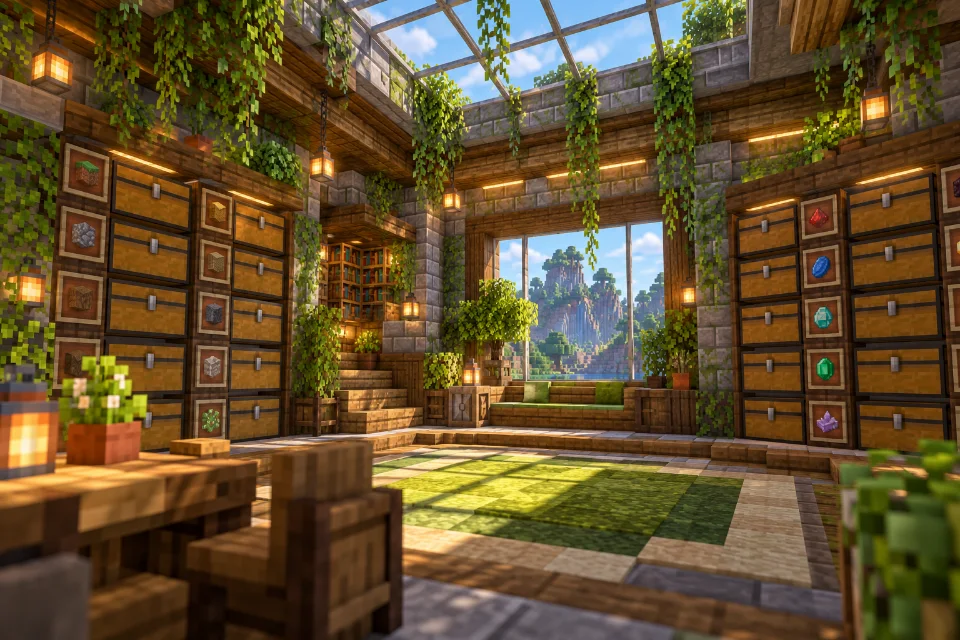
Preserve the working setup
Duplicate the game profile or back up its important files before updating. Keep world backups outside the active save directory. Record the old game version, loader and mod list so that you can reconstruct the exact combination that worked.
Review all requirements
Check the supported versions of every component you replace. Do not assume every mod has a release for a newly selected game version. If a required component is unavailable, keep the existing profile available rather than forcing files with unrelated requirements into the new one.
Use a disposable world
Launch the updated profile and create a temporary world before opening a valued save. Test connected surfaces, resource packs and the visual mods you normally use. Read any error messages. Change one optional component at a time when narrowing down a problem, keeping the previous profile until the new setup behaves correctly.
Decide why you are updating
Begin with a specific reason: a required game version, a documented fix, support for another component, or a feature you intend to use. This helps you choose the scope of the update. Replacing every available file without a goal can turn a small maintenance task into a larger compatibility experiment. If the existing setup already serves your needs, keep it available while evaluating the new arrangement.
Write down the result you expect. You might want the same appearance on a newer game release or a corrected texture issue in the current profile. A clear expectation gives your testing a purpose. It also helps you recognize when an update is optional rather than something that must interrupt your current play session immediately.
Create a backup you can actually restore
Keep important world backups outside the active game directory and identify the profile they belong to. Record when the copy was made and what it contains. A folder with an unclear name is difficult to trust when you need it urgently. Before changing the working profile, confirm that the backup exists and that you understand how to return to the previous configuration.
Preserve configuration information as well as saves. Record the game version, loader, mod releases, resource-pack order, and any settings that influence the appearance you care about. Screenshots of the sample wall provide a useful visual reference. A world backup protects the world data, while a setup record helps you reproduce the environment in which that world looked and behaved as expected.
Check the entire dependency chain
Review the supported versions of every essential component in the intended target setup. If changing the Minecraft version, do not assume that a library working in the old profile will remain compatible. Open the selected release information and compare its requirements with the complete list. Keep optional additions separate from the components needed to establish the first working launch.
If a required piece is unavailable for the target, pause that particular upgrade and keep the existing instance. Renaming a file or adding an unrelated library does not establish support. When possible, test the new combination in a separate directory so you can continue playing the old profile without repeatedly replacing its files. This makes evaluation reversible and much easier to reason about.
Change a duplicate profile first
Give the testing instance a distinct name and check its directory before copying files. Keep it separate enough that the launcher cannot silently reuse the working profile's mods or saves. Launch the duplicate once to confirm its identity, then make the planned update with the game closed. Retain the original component list rather than relying on the names of files remaining in Downloads.
Use a short change log. Record which component you replaced, which release you selected, and why. If the game reports a new requirement, add that information before making another change. This creates a useful sequence of evidence. Without it, several quick corrections can leave you unsure which combination ultimately worked or why the first attempt failed.
Test startup before valuable saves
The first milestone is a consistent launch to the main menu. Read any dependency or compatibility error before trying unrelated settings. Once startup succeeds, create a disposable world. Check basic movement, ordinary terrain rendering, and the materials used by your preferred texture pack. Only then move on to more complicated scenes or a copy of an established world.
Keep a small sample area containing your connected-glass arrangements, common decorative materials, and any supported visual details you rely on. Compare it with screenshots from the working profile. A successful launch is important, but it is not the same as confirming every visual feature. Separating these milestones helps you identify whether a problem belongs to installation, rendering, or resource-pack appearance.
Introduce optional changes independently
After the essential update works, add optional packs and rendering components one at a time. Repeat the same checks after each addition. Keep graphics settings comparable so you can distinguish a compatibility problem from a deliberate change in visual style. If performance feels different, use the same route and allow terrain loading to settle before drawing conclusions.
Do not combine a resource-pack redesign with a large mod update unless you are prepared to test each layer separately. New artwork can make a technically correct setup look unfamiliar, while changed lighting can alter the impression of a window without changing its connections. Record what changed and compare the relevant feature directly. Controlled testing prevents unnecessary attempts to repair an intentional visual difference.
Plan your rollback before you need it
Know which profile you will return to if the test fails. Keep its game directory and configuration intact, and avoid opening the only copy of a valued save in an experimental setup. If you tested a copied world, distinguish that copy clearly from the original. This prevents confusion about which version contains the latest progress when you resume normal play.
When rolling back, restore the documented combination rather than mixing old and new files until the game happens to start. Recheck the sample scene to confirm the expected appearance. Keep notes about the unsuccessful target configuration so you can revisit the issue when an appropriate release or documented fix becomes available. An unsuccessful test still provides useful information when its conditions are recorded.
Finish with an everyday play check
Before removing the old test materials, write a final handover note for yourself. State which profile is now the normal one, where its directory is located, which backup contains the previous world, and which combination passed the checks. If the update changed a resource pack, include its final order and a screenshot of the sample wall. These details prevent an avoidable mistake later: launching the wrong instance and assuming an earlier problem returned. Keep the note short enough that you will actually consult it. The purpose is to make the next session predictable, with a clear working profile and no uncertainty about where your most recent progress belongs.
Use the new profile for an ordinary session before retiring the old one. Visit the places that matter in your world: storage, farms, major builds, and frequently traveled routes. Check both appearance and usability. A tiny test world cannot represent every condition, so this final stage helps catch problems that only become obvious during your normal routine.
Save the confirmed component list and screenshots after the session. Keep the previous backup until you are comfortable with the updated setup, and maintain regular world backups afterward. A careful update workflow is not about avoiding change. It gives you the freedom to try improvements while retaining a clear route back to the world, visuals, and configuration you already know.
Official references
Check current release requirements in the Continuity project listing and Fabric installation documentation.