Using connected-texture resource packs
Choose resource packs by their documented features, test supported materials, and build a collection whose appearance you understand. This guide explains how to evaluate a pack before making it part of your everyday profile.
Read the pack description
Check the supported game version and the features the pack actually supplies. A texture replacement and a connected-texture definition are different things. Choose a pack whose instructions explicitly describe the effect you want, and keep a record of its required supporting mods.
Use the active profile folder
Open Resource Packs in the game and use its folder button to find the correct directory. Add the pack in the format its author provides, then return to the game and activate it. Follow any ordering instructions from the author when combining it with an existing texture pack.
Start with one supported block
Build a small sample using a material the pack explicitly supports. Inspect straight edges, corners and isolated blocks. If the result looks wrong, temporarily disable other packs that change the same material. Restore them individually to identify which pack supplies the visible texture.
Define the effect you want first
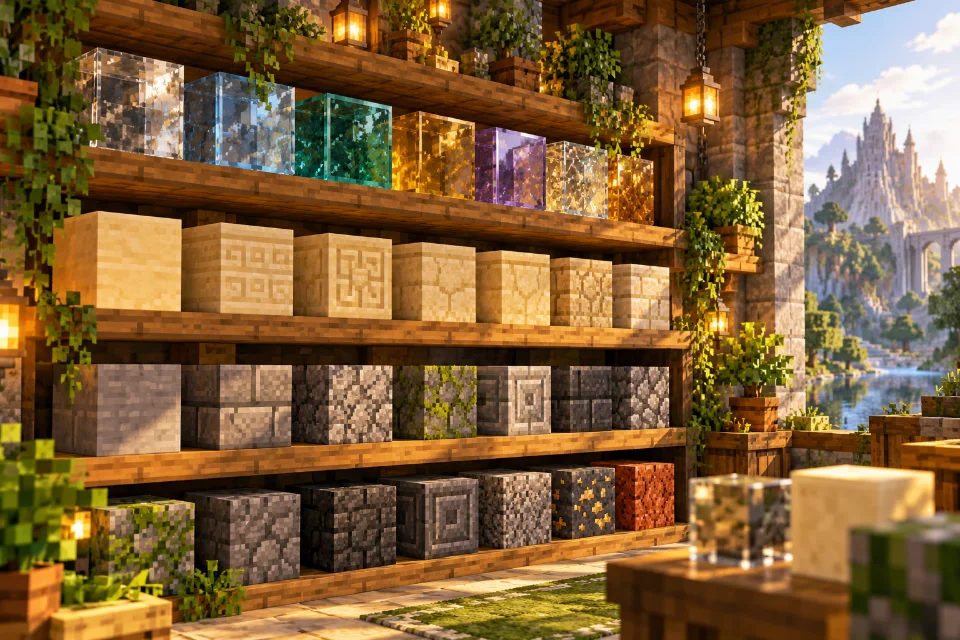
Write down what you expect to change before downloading a pack. You might want clearer windows, a repeating stone pattern, or bright details on a particular decorative block. These are different visual goals, and a pack may cover only one of them. A good description names the supported materials and required features. A dramatic promotional image alone does not tell you which part comes from textures, lighting, shaders, or the building itself.
Choose one priority for the first test. If connected glass is the goal, begin with glass rather than evaluating every block in the game. A narrow test helps you judge whether the pack delivers the feature you selected. You can investigate additional materials once the basic result is clear.
Distinguish a mod from a resource pack
The mod provides support for certain visual behavior; the resource pack supplies the appearance and relevant rules. Keeping these roles separate makes installation easier to reason about. A working texture archive does not prove that every required supporting mod is installed, and an installed mod does not automatically provide every visual effect shown by an unrelated pack. Read each project's requirements before putting files into the profile.
Keep a simple record of which component does what. For example, list the selected game version, the component providing connected-texture support, and the pack defining your preferred material. When an effect is missing, that record gives you a specific layer to inspect. Without it, it is easy to change the wrong component repeatedly.
Check the archive before changing its structure
Keep a downloaded pack in the form its author recommends. Unpacking and repacking it without a reason can introduce an additional folder level or move files away from their expected locations. If the game does not list the pack, check the installation instructions and whether the download contains multiple variants. Do not keep modifying the original archive while also trying different launcher settings; preserve an untouched copy for comparison.
Use the game's resource-pack folder button to find the active location. This is especially helpful with several launcher profiles because a familiar folder elsewhere on the computer may belong to a different instance. Once the pack appears, activate it and allow the resource reload to finish before examining your sample scene.
Build a representative sample wall
Choose a material that the pack specifically supports and make a short row, a square wall, and a corner. Put isolated examples nearby. Add contrasting backgrounds so that clear and opaque areas are easy to distinguish. This little collection reveals more than looking at a random building containing several colors, panes, walls, and decorative substitutions. Label the samples if you expect to compare more than one pack.
Take one screenshot from a fixed viewpoint before activating optional additions. Then enable the pack and repeat the screenshot. Keep the time of day and graphics settings comparable. You are trying to isolate a texture change, so avoid moving the camera to a more flattering location between images. The comparison should answer a question, not merely produce attractive pictures.
Introduce a base pack carefully
Many players already have a broad texture pack that replaces most of the world. When adding a smaller connected-texture pack, check whether the two authors provide ordering instructions or an integration variant. Do not assume a pack affects only the material named in its title. It may also include supporting textures or definitions that overlap with another archive in the active list.
Test the small pack by itself where possible, then test it alongside the base pack. Compare exactly the same supported blocks. If the result changes, you have evidence of an interaction rather than a general installation failure. Record which arrangement produced the desired appearance so the solution remains reproducible after the next profile change.
Evaluate emissive details separately
A pack may advertise both connected surfaces and glowing details, but those effects deserve separate checks. Use a supported example for each. A connected glass wall tells you little about an emissive item model, while a bright decorative block tells you little about a corner connection. Keeping these tests separate prevents a partial success from hiding an unsupported or misconfigured feature.
Make a small dark room and compare it with a well-lit outdoor sample. If you normally use shaders, repeat the test without them so you can identify which component contributes the result. Describe what you see precisely: a texture remains bright, a surface joins, or nearby terrain becomes illuminated. Those observations are more useful than saying that everything glows or nothing works.
Balance detail with the way you play
Judge a pack while moving through a familiar world, not only while standing beside a display wall. Fine material detail may be attractive up close yet distracting at a distance. A palette that suits screenshots may make ordinary navigation harder. Spend time near your storage area, farm, paths, and main buildings before deciding to apply a new visual style to your everyday profile.
If the scene becomes less comfortable or less smooth, compare settings methodically. Keep the same viewpoint and let nearby terrain finish loading. Change one optional visual component rather than reducing several unrelated settings together. Your aim is a usable combination that delivers the intended appearance, not simply the largest collection of effects that can be installed.
Document a working pack collection
When sharing your chosen collection, describe the exact effect each pack contributes instead of passing along an unexplained folder. Include a small screenshot of the supported sample and the active order. Someone following your notes should understand which archive replaces the general artwork and which provides the detail you selected. If a pack author requests attribution or sets conditions for redistribution, follow those terms rather than bundling files without checking. Sharing links to the original project pages and your configuration notes is often a clearer way to explain the setup. It also lets another player choose the release appropriate to their own game version.
Once the appearance is right, record the active pack names, versions, order, and any author instructions you followed. Save screenshots of the test wall alongside the notes. Store this record outside the active resource-pack folder so it remains available if a profile is replaced. It is particularly useful when a pack updates its structure or changes which materials it covers.
Before updating the collection, duplicate the working profile and test the changed pack there. Check both the sample wall and an existing build. A technically successful reload does not necessarily mean the new art direction suits that build. Keep the older arrangement available until you have evaluated the actual spaces where you play, and choose the version that best serves those spaces.
Official references
Check current release requirements in the Continuity project listing and Fabric installation documentation.