Java and Bedrock: understanding mod differences
Identify your Minecraft edition before following a visual-mod guide. Learn how to evaluate platform requirements, distinguish similarly named projects, compare expected results, and select an installation approach appropriate to your own game.
Identify the game edition
Check which edition you are launching before choosing installation instructions. Java Edition and Bedrock Edition have different customization systems. A Java mod file is not a universal Minecraft add-on, even when a download for another platform has a similar name.
Evaluate each project separately
Read the author, supported platform and installation instructions of any similarly named pack. Treat it as a separate project rather than assuming shared ownership, support or features. Check the original project listing when deciding whether a file belongs to Continuity.
Use platform-specific instructions
Follow Java mod-loader instructions for Java profiles and the appropriate add-on instructions for Bedrock. Keep backups when testing new visual packs. Do not rename a Java mod file or place it in an unrelated folder expecting it to become a Bedrock add-on; select a project designed for the edition you play.
Identify the edition from the running game
Begin with the game you actually launch, not the name of the computer or device. A Windows computer can be used with different Minecraft editions, so saying that you play on PC does not fully identify the installation. Check the launcher entry and the game's own title information before choosing a guide. Record the edition alongside the game version in your notes.
This matters when comparing screenshots and download instructions. Two players can describe a similar visual goal while using different customization systems. If you ask for help, include the edition explicitly. That single detail can prevent a long conversation about folders and file formats that do not apply to the game you have installed.
Separate the visual goal from the project
Wanting smoother-looking glass is a visual goal. Installing a particular Java mod is one possible approach within its supported environment. Another platform may have a different project that aims for a related appearance, but a similar result does not make the projects interchangeable. Evaluate the instructions, support, and feature coverage of each project independently rather than treating a familiar name as proof of compatibility.
Write down which part of the appearance matters most to you. It may be fewer visible borders, a particular decorative pattern, or a lighting-related detail. This helps you assess alternatives honestly. You can compare the outcome you want without assuming another platform must load the same files or support every feature associated with the original setup.
Read the platform requirements before downloading
Open the release information and check the stated edition, game version, and installation method. For a Java mod, the supported loader and dependencies also matter. Do not stop at a project title or an image showing a Minecraft world. Those details identify the subject, but they do not establish which environment can run the file you are about to download.
Keep the original release page available while selecting the file. If a download page offers several platform variants, compare the chosen variant with your recorded setup. Avoid collecting unrelated formats in one folder and attempting to make the game accept them through renaming. Choose the documented route for your actual edition so troubleshooting begins from a supported starting point.
Treat similarly named uploads as separate projects
Check the author and project description when a familiar name appears on another platform. Look for an explicit explanation of what the download contains and who maintains it. A title alone does not establish that the original developer created, approved, or supports that upload. This is particularly important when a visual term is common enough to be used by several unrelated creators.
Judge the alternative on its own documentation. Does it describe supported materials, installation steps, limitations, and an appropriate support channel? Are its screenshots explained clearly? Those questions help you evaluate whether it serves your needs without inventing a relationship to another project. Keep the distinction clear when sharing instructions with friends who may use a different edition from your own.
Understand why renaming files is not installation
A file extension is a label associated with a format; changing that label does not transform the contents into a different customization system. If a guide targets a Java mod loader, copying its files into an unrelated add-on folder does not recreate the required environment. Follow the instructions for the actual project and edition rather than trying a series of filename changes.
When an installation fails, return to the platform requirements first. Confirm that the file belongs to the edition, game version, and loading method you are using. This check is more useful than repeatedly moving the same unsupported file between folders. Keep an untouched copy of the original download so that previous experiments do not obscure what the author actually supplied.
Compare screenshots with the full setup in mind
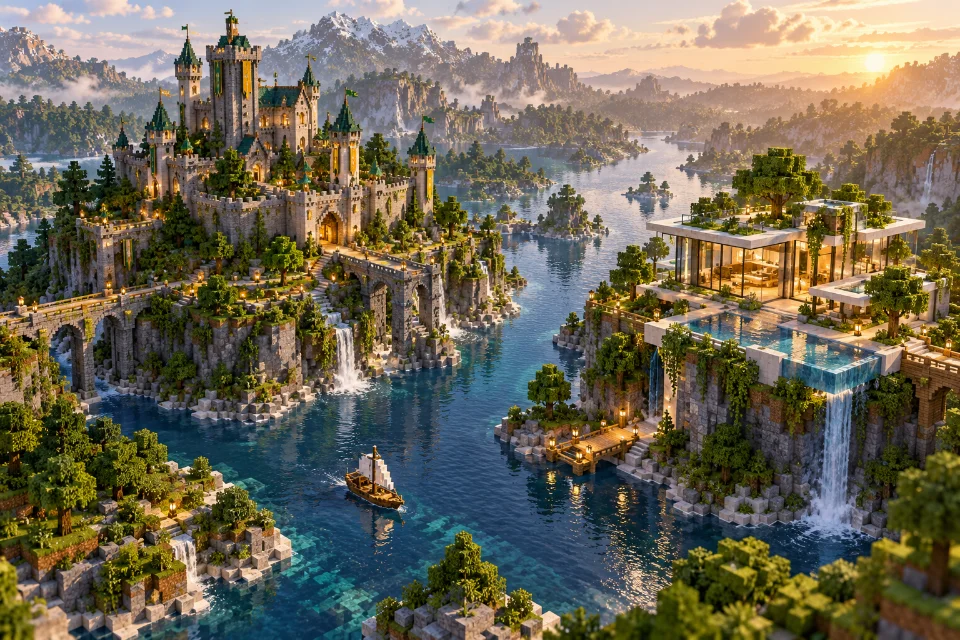
A promotional image may combine a texture pack, lighting effects, carefully chosen terrain, and architectural details. It is not necessarily showing what one download produces by itself. Before expecting the same result in another edition, identify which components are responsible for the features you notice. Look for documentation or a clearly described showcase setup instead of inferring the whole process from the image.
Make your own small comparison scene using the materials you intend to build with. Test the chosen platform-specific project under its supported conditions. Compare straight walls, corners, and the lighting you normally use. This tells you whether the actual result suits your world even when it differs from the image that first inspired you to explore the idea.
Plan shared builds for different players
If friends use different visual setups, distinguish the physical building from its optional appearance. The arrangement of blocks may be the shared design, while textures and lighting determine how each player sees it. Explain which choices are essential to the structure and which are personal visual additions. Do not promise an identical view to someone using a different edition or unrelated resource collection.
Check the build with ordinary materials before depending on a specific effect. Frames, rooflines, paths, and room proportions should remain understandable on their own. This makes the design more resilient when another player has a different setup. A good structure can support several visual styles, even when the fine texture details are not reproduced exactly across every environment.
Choose a maintainable path for your edition
When helping another player, begin by asking them to identify the edition and release shown by their own installation. Do not send a folder of files before establishing that context. Explain the intended visual outcome, point them toward the appropriate project information, and describe what your screenshots actually use. If their platform needs a different approach, compare the supported results honestly instead of promising an identical installation. A useful recommendation makes the boundaries clear while leaving room for another solution. This approach avoids confusion about authorship, file formats, and expected features, and helps both players focus on a setup they can maintain rather than a name they happen to recognize.
Once you select a supported approach, keep its instructions and version information with the relevant game profile or installation notes. Back up important worlds before trying changes, and use a small test world to evaluate the appearance. Record what worked so that a future update does not send you back to comparing unrelated tutorials and similarly named downloads.
The useful decision is not which edition has a more impressive screenshot. It is whether a documented project works in your environment and provides the appearance you want with a maintenance effort you can manage. Identify the edition, check the release, test the actual materials, and keep a clear record. Those steps turn a vague search for better glass into an installation process you can understand and repeat.
Official references
Check current release requirements in the Continuity project listing and Fabric installation documentation.