A beginner guide to emissive textures
Plan bright-looking texture details with a clear purpose, then test the supported materials under controlled conditions. Learn to separate the texture appearance from surrounding lighting and use restrained accents in practical builds.
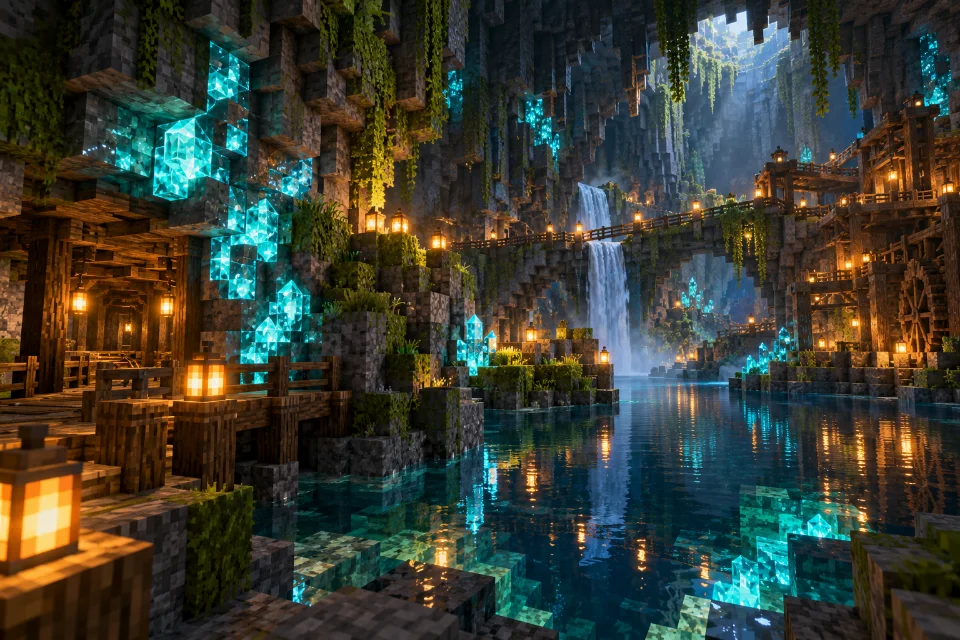
Understand visual brightness
An emissive detail can remain visually bright in dark surroundings. That appearance does not by itself mean it casts light onto nearby blocks. Keep decorative glow separate from practical room lighting when planning a cave, sign or underground build.
Use a pack with matching assets
Choose a resource pack that explicitly provides supported emissive textures. An ordinary pack does not automatically gain glowing details when supporting software is installed. Read the pack instructions and select a block or item model identified by its author for the first test.
Compare light and dark
Create a room with one lit corner and one dark corner. Compare the same supported material in both places. If shaders are installed, test without them to isolate the effect. Keep ordinary light sources wherever visibility matters rather than relying on decorative brightness.
Decide what should remain visually prominent
Before selecting a glowing material, decide what the player should notice in the scene. An accent on a machine, a decorative marker beside a path, and a bright detail inside a display cabinet have different jobs. Sketch the room with ordinary blocks first, then identify a few places where persistent visual brightness would help. This gives the effect a purpose instead of turning every available surface into a competing highlight.
Keep the surrounding palette quieter than the accent. Dark stone, restrained wood tones, or a simple wall can help a small bright detail stand out. If everything is highly patterned, the same detail may disappear into visual noise. Test the composition from the doorway as well as from directly beside the chosen material.
Distinguish appearance from illumination
When testing a bright-looking texture, observe the object and its surroundings separately. Ask whether the material remains easy to see, whether nearby blocks become brighter, and whether shadows or reflections change. These are different observations and may come from different visual components. Describing them accurately prevents confusion when comparing packs or asking why a promotional image looks different from your own room.
For a practical test, place an ordinary reference block next to the decorated material in a dark corner. Compare both objects with a second pair under a normal light source. Keep the camera close enough to inspect the texture itself. This simple arrangement makes it easier to judge visual brightness without assuming that every attractive glow is produced by the same mechanism.
Choose a documented supported example
Read the resource-pack description and select a material or item model that the author explicitly identifies. Do not assume a pack supplies emissive details for every luminous-looking block in its artwork. A collection may contain ordinary bright colors, supported texture effects, and images made with additional lighting tools. Start with a named example so you know what you are trying to reproduce.
Keep the pack's installation instructions beside your profile notes. Record which supporting components and game version the chosen release expects. If the first example works, expand the test to another documented material. A methodical sequence gives you confidence about the actual coverage of the pack and makes later artistic choices less dependent on guesswork.
Build a controlled lighting room
Create a small room with a simple floor and neutral walls. Put one sample near the entrance, one deeper inside, and one beside an ordinary light source. Leave enough space between them to inspect each without the others dominating the view. Include a short outdoor display for comparison. Keep this testing room separate from a large finished build so you can change it without damaging your design.
Use a fixed viewpoint for screenshots and note the active visual components. Compare the room during ordinary play rather than judging a single enlarged image alone. A detail that looks dramatic in a cropped screenshot may be distracting or difficult to read when moving through the space. The most useful test reflects the way players will encounter the material.
Add shaders only after the basic test
If your normal setup includes shaders, begin with a supported configuration that lets you inspect the texture effect on its own. Then restore the shader-related components and compare the same room. Watch for changes in reflections, surrounding light, and the apparent spread of bright areas. This lets you identify which part of the result belongs to the pack and which depends on your broader visual setup.
Avoid presenting a combined effect as a guarantee for every installation. Different settings and components can produce different impressions even when the underlying material is supported. Record the exact arrangement used for your preferred screenshots. If you share the build with friends, explain the optional visual setup separately from the blocks needed to recreate the structure.
Use glowing accents in practical builds
A storage room can use a few bright decorative details to emphasize important aisles without turning every chest wall into a spectacle. A cave outpost might place accents around its entrance to make the boundary visually clear. In a laboratory-themed build, a supported material can highlight a small machine display, while ordinary lighting keeps the actual working area comfortable to navigate.
Try repeating a limited accent color across related spaces. This creates a visual language: the same hue might mark public paths, a workshop area, or a viewing gallery. Keep the repetition sparse enough to remain meaningful. When planning an elaborate room, test one complete corner with furniture and normal lighting before copying the motif around every wall.
Troubleshoot missing or inconsistent details
If the intended detail is absent, confirm the active profile and pack list. Test a documented supported example rather than a material selected only because it looks similar. Temporarily disable other packs that replace that material, then reload and inspect the same sample again. Record whether the issue affects the texture itself, a particular model, or only the scene with optional rendering additions enabled.
When the effect returns after simplifying the pack list, restore archives individually to identify the interaction. If the result depends on a rendering component, check the selected releases and their documented support. Do not repeatedly change room lighting to fix a missing texture definition. Keep artistic adjustments separate from installation troubleshooting so that each test answers a clear question.
Keep visual priorities clear
One useful finishing exercise is to remove half the accents temporarily and compare the room again. Notice whether entrances, paths, and focal objects become easier to read. If the reduced arrangement communicates the theme more clearly, keep it and use ordinary materials elsewhere. If the room loses an important landmark, restore that particular detail rather than every removed surface. This comparison helps distinguish purposeful brightness from decoration added simply because it was available. Save screenshots of both versions from the same viewpoint so the decision remains grounded in the composition. A restrained design can make a small supported effect feel more deliberate and memorable during everyday movement through the build.
Before finishing a build, walk its ordinary routes and notice where your eye goes first. Bright details should support the function of the room, frame an architectural feature, or communicate a deliberate theme. If an accent pulls attention away from the entrance or work area, reduce its repetition or move it to a less dominant location. More glowing surfaces do not automatically produce a more readable composition.
Save a few comparison screenshots and the working pack order after choosing the final arrangement. Revisit the test room following updates before changing a finished build. This preserves both the technical setup and the design decisions behind it. Emissive textures become most useful when treated as a controlled part of the material palette, with their appearance understood and their placement chosen for the scene.
Official references
Check current release requirements in the Continuity project listing and Fabric installation documentation.